
6 min read
When communication fails, production halts — and the cost of downtime can add up quickly. Even if you troubleshoot connectivity issues regularly, it’s easy to start in the wrong place, which can make things more complicated or cause you to overlook a simple issue. This blog explores built-in or low-cost/free* tools that can support basic communications troubleshooting, ranging from simple checks to more advanced communications. These examples represent a small sample of the tools available; there are countless others that can be utilized for similar tasks.
*For security purposes, freeware links have not been provided, as verified links can change over time.

Ping (Built-In)
Ping is a built-in utility available on nearly every operating systems used to troubleshoot network connectivity issues. Still, many engineers overlook the built-in capabilities, particularly the parameter switches available in Microsoft Windows.
For example, normal ping execution provides success/fail results of a given IP address after 4-5 attempts. However, using the -t parameter switch pings the specified host continuously until manually stopped (using Ctrl+C). This can be useful during machine restarts, or to determine if connectivity is intermittent.
Another example is if you need to identify what device is connected to a specific IP address. If the device has a hostname, use the -a parameter to perform a reverse DNS lookup, which attempts to resolve an IP address to its hostname. This can be helpful to determine if another device is occupying the IP address. Note that not all devices will provide a hostname, or the hostname may not be configured.
Ping should always be your first step when troubleshooting. If a PC cannot communicate to a device with a simple ping, then there is most likely an issue between the device and the machine. If the environments have stringent firewall policies, there could be a scenario where the PLC's TCP port may NOT be blocked, however pinging is.
Test-NetConnection (BUILT-IN) & PORTQRYUI (FREE)
Consider this scenario - A PC cannot communicate with a device communicating over standard Modbus TCP. A simple ping command reveals that the PC is able to communicate over port 80, yet communications still fail. Chances are that somewhere in the communications chain, the TCP port used by Modbus TCP (Port 502) is blocked or screened by a firewall. Ping will not discover this, as it only tests TCP port 80. In this case, a tool that can inspect a specific port is required.
Test-NetConnection is simple tool providing network diagnostics and is built into the Windows operating system, available as a cmdlet in PowerShell.
To run Test-NetConnection, open PowerShell and type the following:
Test-NetConnection -ComputerName <IPAddress or Hostname> -Port <PortNumber>
For example, the following command tests communications with the IP address 10.0.1.1 over port 502:
Test-NetConnection -ComputerName 10.0.1.1 -Port 502
The resulting output will provide you with both a Ping success and a TCP Test Success.
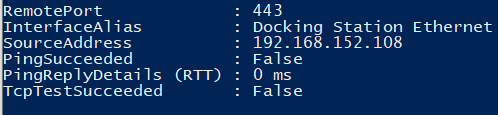
This provides a simple true/false approach, but what if more evidence is needed? The PortQry tool (and it's GUI counterpart PortQryUI) will provide more verbose data than just succeed/fail. This free tool can be used to test a TCP or UDP port as well. Its output is a little different, providing a LISTENING, NOT LISTENING, or FILTERED status from the requested port. Oftentimes, the tool will respond with the name of the service or application that is connected to the destination PC's port, if it is listening.
The syntax is simple - open a command line and change to the directory where PortQry.exe is, then execute using:
PortQry -n <IP address or computer> -e <port number>
Going back to the original example, the syntax would be:
PortQry -n 10.0.1.1 -Port 502
If a UI is preferred, the PortQryUI tool adds a Windows form that will fill in the command line for you. A good rule of thumb—if the PortQry tool returns FILTERED, there is a very strong probability that there is a firewall blocking communications between the source and the destination.
nslookup (BUILT-IN)
As more devices utilize host names and Fully Qualified Domain Names (FQDNs), accurately mapping an IP to the correct name in the DNS server becomes paramount. This is especially important with protocols that utilize SSL certificates to secure communications, as often the name provided in the SSL certificate is a specific hostname of FQDN.
In this scenario, nslookup, a built-in command line tool, will determine if both the local IP address and the destination address are connecting to the right DNS name.
To look up the registered DNS name of a specific IP address (or the source IP address) type in:
nslookup <IP or Hostname>
This will provide both the destination and source IPs in addition to the assigned DNS name for each. Using the -type= switch allows you to find all records of a specific type. For example, to find out the Name servers registered in a domain, use:
nslookup -type=NS my.domain.com
Wireshark (Free Download)
Getting deeper into the waters of network troubleshooting, Wireshark is one of the most widely used packet capture tools. It requires a second tool, Npcap, to be downloaded to execute the actual packet capture. From there, when running, Wireshark will connect to either a single or all available network cards on the PC that it is launched on, and begin to grab information.
And there's a lot of information.
Please note that capturing and analyzing packets may not be suitable for beginners. However, simply collecting the packet data, saving it, and sharing it with a network professional or product support representative can quickly expose an issue that surface level troubleshooting would not.
For example, Wireshark will show the Modbus TCP operation codes that are being sent and received from devices, something that would not be seen from any of the three previous tools.
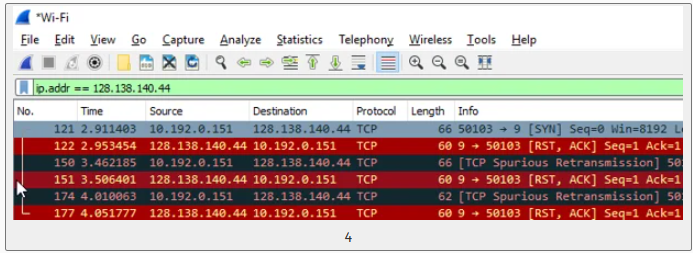
Another benefit of using Wireshark is their large community of users worldwide, giving new users access to a wide array of learning resources.
MODSCAN (Free Demo, Commercial License AVAILABLE)
There are several different protocol-specific troubleshooting tools available from different vendors. Some are free, some require an account to download, and some are available for purchase.
For Modbus TCP troubleshooting, ModScan has been one of the easiest tools to utilize. Written by WinTECH Software and still maintained (for a blast back to the early 2000s internet, their landing page still has that look).
ModScan will connect to a TCP device and allow the user to see individual registers, send and receive data, and see the Modbus codes that are being transmitted. Since most Modbus TCP drivers are shipped with settings built for Schneider-Modicon controllers, sometimes these settings need to be tweaked to successfully communicate with other Modbus devices such as loop controllers, boiler monitors, and telemetry devices. Tools like ModScan take the SCADA layer out of the equation, allowing the troubleshooter to connect at the protocol level and determine whether the issue is truly on the supervisory side, or if it's merely a case of tweaking the address style.
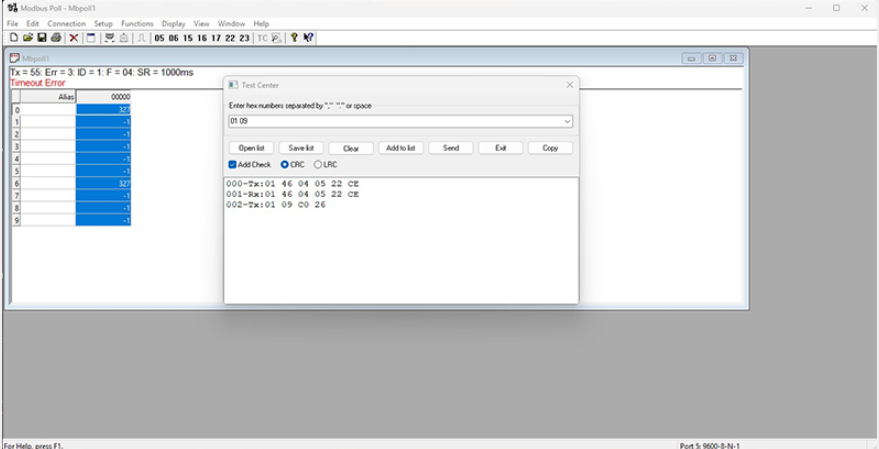
ModScan is a free demo that runs time limited. For perpetual use, there is a full license available. This is just one example of a purpose-built solution for Modbus. There are a number of other tools out there that can be used for other various protocols.
Final thoughts
When communications fail, downtime gets expensive fast. The best way to troubleshoot is to start with simple checks first, then work step-by-step toward more advanced testing. Built-in and free/low-cost tools can quickly test basic connectivity, narrow down where the problem is, and reduce guesswork.
Need help troubleshooting? Contact an ACE expert to learn more.
Related Posts
Find Your Pitfalls: Using a FEED Study to Efficiently Perform Legacy Control System Code Conversions
When it comes to plant floor control system software upgrades, the path of least resistance can...
Top Six Things To Improve Your Cyber Posture Today
When someone asks what can be done to improve their cybersecurity situation, the explanation often...
Making Your Case: The ROI of MES
When considering an investment in MES, you may have to compete with other sectors of your business...